
Understanding Simple View and Detailed View in Receipt Bot
Receipt Bot automates data entry from your receipts, invoices and bank statements, so you can review and export accurate data in a fraction of the time it takes to type it in. Not every business needs the same level of detail from each document, so Receipt Bot now offers two solution types: Simple View and Detailed View.
Choosing the right one means you review only the detail you need, which speeds up your accounting and gives you better control and visibility than entering records by hand in your accounting software.
Simple View vs Detailed View
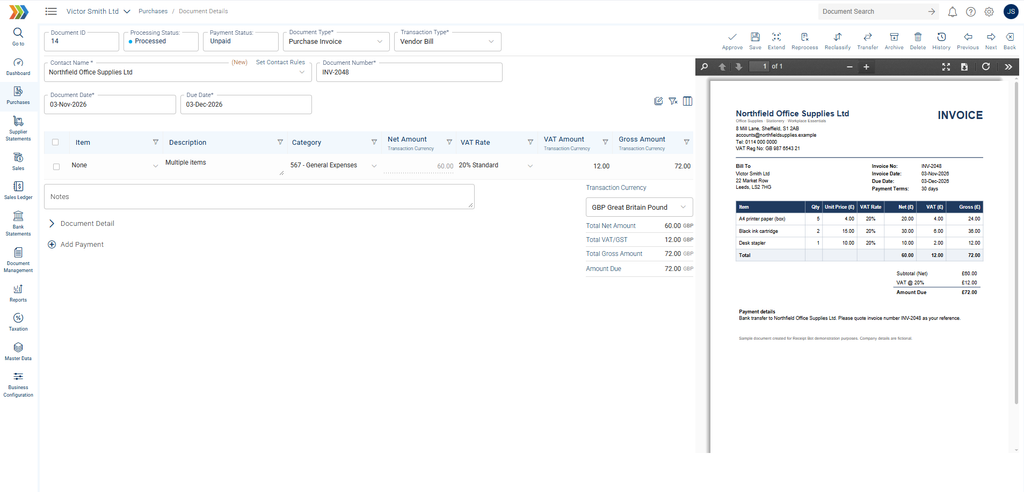
– Simple View: Receipt Bot accumulates all amounts on the document into one summary line. You see only the essential details: Contact, Document Date, Due Date, Category, VAT Rate, Net, VAT, and Gross Amount.
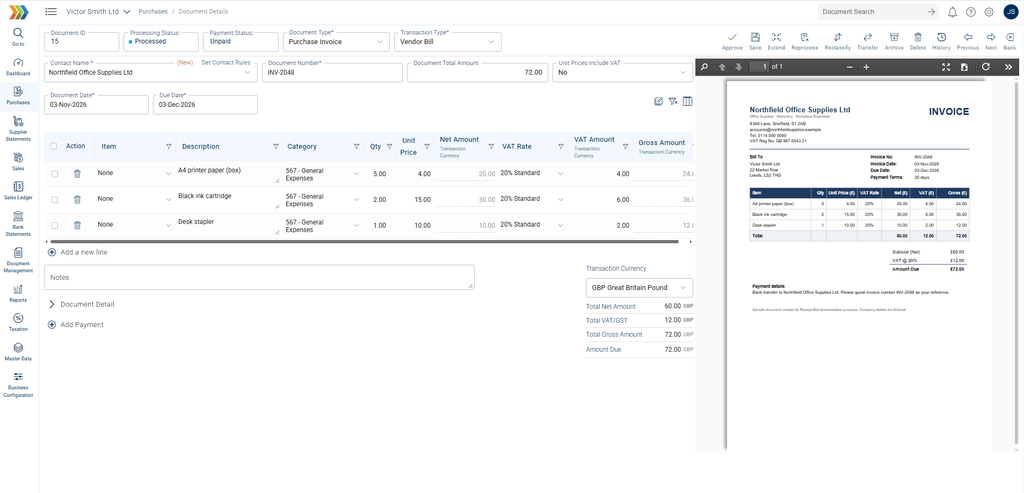
– Detailed View: Receipt Bot records each line item on the document as a separate row. You get the Analysis tab for line-level review and the Add Lines button on the document details page.
Note: You can switch a business from Simple View to Detailed View at any time. However, you can switch back to Simple View only when none of the business’s documents contains more than one line item. Before switching, delete any multi-line documents or convert them into single-line documents.
How Receipt Bot Extracts and Displays Documents in Simple View and Detailed View
The easiest way to see the difference is to take one invoice and look at how Receipt Bot records it in each view. Here is a sample purchase invoice:
In Simple View, Receipt Bot records the invoice as one summary line:
In Detailed View, Receipt Bot records one row for each invoice item. The header details repeat on every row, and each row carries its own description, quantity, unit price and amounts:
Set The Solution Type When You Add a New Business
When you add a new business, Receipt Bot asks what you would like to extract from your purchase and sales invoices. The extraction settings you choose decide whether the business starts on Simple View or Detailed View.
Step 1 – Click the gear icon at the top right corner and select the Add New Business option.
Step 2 – Complete the new business form, provide Business Name, Short Name, Country, Base Currency and City/State (Optional).
Step 3 – On the Module Selection step, switch on Purchases and Sales.
Step 4 – Under what would you like to extract from purchase invoices, and what would you like to extract from sales invoices? Select Line Items, Key Info and Totals or VAT Summary.
Step 5 – Click Finish.
Note: The Solution Type depends on the extraction settings selected for Sales and Purchase Invoices:
– Simple View: Assigned when both Sales and Purchase Invoices are set to Key Info and Totals.
– Detailed View: Assigned when either Sales or Purchase Invoices are set to Line Items or VAT Summary, regardless of the extraction setting selected for the other.
In short, your business starts on Simple View only when both Sales and Purchases are set to Key Info and Totals. If either one is set to Line Items or VAT Summary, it starts on Detailed View.
Check The Solution Type Of Your Business.
You can check or change the Solution Type later from the Extraction Rules tab. To check or change your current Solution Type, follow the steps below:
Step 1 – From the business menu, navigate to the Business Configuration page.
Step 2 – Select the Extraction Rules tab.
Step 3 – In the Solution Type section, under Data Extraction Rules.
The selected option, Simple View or Detailed View, is the Solution Type for this business.
Move Your Business from Simple View to Detailed View
Follow the steps below to move your business from Simple View to Detailed View.
Step 1 – From the business menu, navigate to the Business Configuration page.
Step 2 – Select the Extraction Rules tab.
Step 3 – Under Solution Type, select Detailed View.
Step 4 – Read the confirmation message. It explains that switching will change the view and enable the extraction setting.
Step 5 – Confirm the message to proceed.
Note: Your business will switch to Detailed View immediately. The Analysis tab and the Add Lines button will appear, and the extraction setting will change to Line Items.
Detailed View still lets you extract a single summary line from your documents. The extraction settings available depend on your Solution Type:
– Simple View: Key Info and Totals only.
– Detailed View: Key Info and Totals, Line Items, or VAT Summary.
To change the extraction setting, select the option you need under Purchases Extraction or Sales Extraction on the Extraction Rules tab.
Overview of Simple View
The following applies to both the Purchases page and the Sales page when your business is on Simple View:
– One grid: All your documents appear in a single grid.
– One row per document: Header-level and line-level fields are merged into a single row so that you can review and edit each document from one place.
– No Add Lines button: The document details page does not show the Add Lines button, as each document is recorded as one line.
– Editable Gross Amount and VAT Amount: Enter the Gross Amount and select the VAT Rate, and Receipt Bot calculates the VAT Amount and Net Amount for you. You can edit the Gross Amount and VAT Amount, but not the Net Amount.
Note: The grid combines header-level columns, such as Contact Name, Document Date, Due Date, Transaction Type, and the total Net, VAT, and Gross Amount, with line-level columns, such as Category, Description, and VAT Rate, in a single row.
Overview of Detailed View
The following applies to both the Purchases page and the Sales page when your business is on Detailed View:
– Documents and Analysis tabs: Both tabs are available, so you can review each document and analyse it line by line.
– Line-level detail: Each item on a document is recorded separately, with its own description, quantity, unit price, category and VAT rate.
– Add Lines button: The document details page shows the Add Lines button, so you can add line items to a document.
– All extraction settings: You can choose Line Items, Key Info and Totals, or VAT Summary on the Extraction Rules tab.
All other review actions, such as bulk edit, inline editing, filters and reporting a mistake, work as described in Review extracted purchase invoices in Receipt Bot.
Related Articles
Review extracted sales invoices in Receipt Bot.
Receipt Bot data extraction setting
Frequently Asked Questions (FAQs)
Q: What is the difference between Simple View and Detailed View?
A: Simple View records each document as one summary line with the Category, VAT Rate, Net, VAT and Gross Amount. Detailed View records every line item on the document as a separate row and gives you the Analysis tab and the Add Lines button.
Q: Can I move my business from Detailed View to Simple View?
A: Only if the business has no documents with more than one line item. To move back to Simple View, first delete any multi-line documents or convert them into single-line documents. Once that is done, you can select Simple View on the Extraction Rules tab.
Q: Which view are my existing businesses on?
A: Your existing businesses stay on Detailed View, so the way you review and export their documents does not change.
Q: Why can I not change the extraction setting on Simple View?
A: Simple View records each document as one summary line, so the extraction setting is fixed to Key Info and Totals. To extract line items or the VAT summary, move your business to Detailed View.
Q: Can I extract a single summary line in Detailed View?
A: Yes. Detailed View supports all three extraction settings, including Key Info and Totals, which extracts the header details and totals as one line.