
Overview of Receipt Bot navigation
As part of the Receipt Bot user experience design, we aimed to make the application user-friendly and intuitive. That required a balance between simplicity and easy availability of the right tools and options to the users. This article discusses the User Interface (UI) objects and how to access various app features.
The Receipt Bot application has three main objects that determine the access and data that you see:
– Organisation (Practice or Account): This is the top-level entity where billing and subscription settings are managed. When you sign up and add your first business, an organisation is automatically created in the background. You can manage multiple clients or businesses under an organisation.
– Business: A business, person, organisation, or entrepreneur, for whom accounting is being performed. An organisation can have multiple businesses. Accountants and bookkeepers typically establish a business entity for each of their clients. Some users use this feature to keep personal and business expenses separate, or to manage expenses of different branches or locations separately.
– User: A user account, associated with an email used for login. A user can have access to multiple organisations or businesses.
Navigating the Receipt Bot Interface
Receipt Bot’s layout is designed for ease of use, with clearly separated sections for managing documents, users, and settings. Here’s a breakdown of the main navigation elements visible:
Business Menu (Left Side)
Located on the left-hand side, the Business Menu provides access to all features related to the current business. It shows the following options:
– Organisation Logo and Name: Here you see the logo and name of your organisation (Practice). Useful for accountants, as it reinforces your brand to clients. Please refer to the following article to set up practice branding in Receipt Bot.
– Dashboard: It provides a visual summary of your recent activity, including uploaded files and monthly transaction trends. Please refer to the following article for details: Overview of Business Dashboard.
– Purchases: Upload and manage supplier invoices, bills and receipts. View processed data and export to your accounting software. Please refer to the following article for details: Overview of the Purchases.
– Sales: Upload and track customer invoices or other income records. Please refer to the following article for details: Overview of the Sales.
– Bank Statements: Upload and extract data from PDF bank statements for reconciliation and reporting. Please refer to the following article for details: Overview of Bank Statements.
– Document Management: Access and manage all uploaded documents, including receipts, invoices, and statements, in one centralised location. You can also review deleted documents or manage other documents that do not meet the criteria for the above modules.
– Reports: Generate reports for purchases, sales, and other financial data. Please refer to the following article for details: Overview of Reports in Receipt Bot.
– VAT Summary: Generate a summary of GST/VAT incurred or received based on the scanned bills, receipts and sales invoices. Please refer to the following article for details: Overview of VAT Summary.
– Master Data: Maintain lists of contacts, accounts, tax rates, and other reusable data required for transaction creation. Please refer to the following article for details: Understanding the use of Master Data.
– Business Configuration: Edit business details, invite users, manage modules, define extraction rules, and integrate with accounting software.
– Chat Support: You can reach out to the Receipt Bot customer chat support by clicking the chat bubble at the bottom left.

Title Bar (Top Side)
The Title Bar is located at the very top of the screen and provides quick access to global functions like business switch, document search, notifications, and account management, which are available from anywhere within the application.

Business List: The business name is shown at the top. When you click the business name, it opens the list of businesses, and you can quickly switch between different clients.
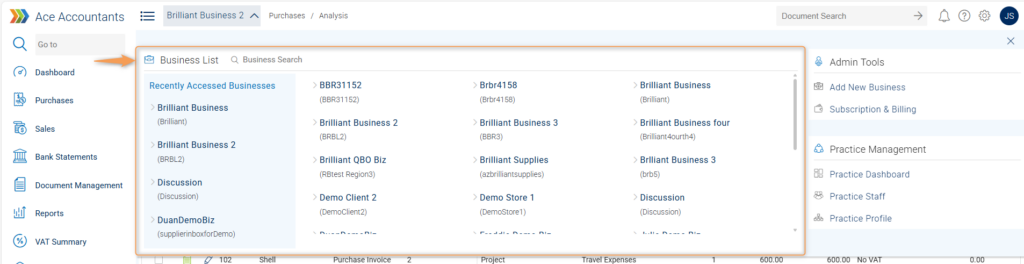
Breadcrumb Trail: This feature displays the hierarchy of pages within the Receipt Bot app, making navigation easier.

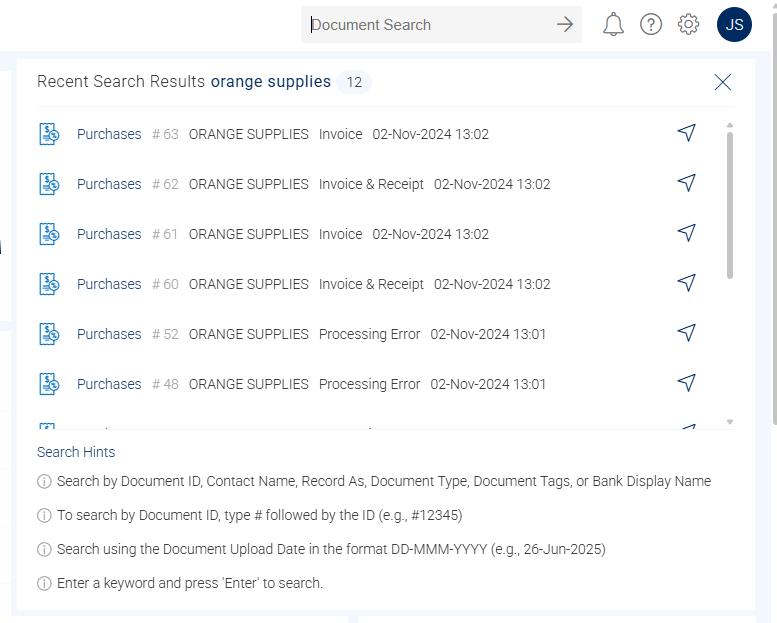
Document Search: A powerful global search bar that allows you to find documents by ID, contact name, document type, tags, or keywords.
Enter the search term and press the Enter key to search for documents. Click the navigation icon to open the document in a new tab.
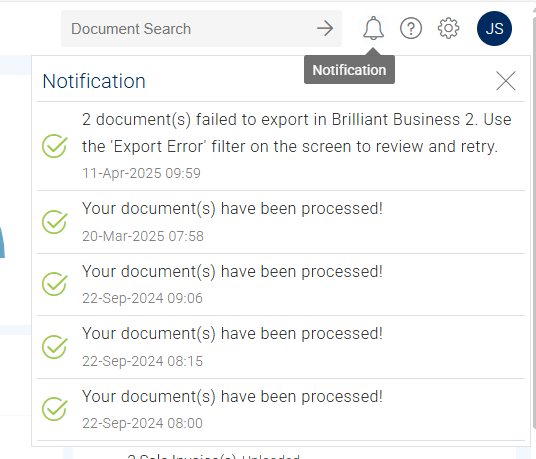
Notifications (Bell Icon): Click the bell icon to view recent notifications about your account, such as successfully processed documents or export errors.
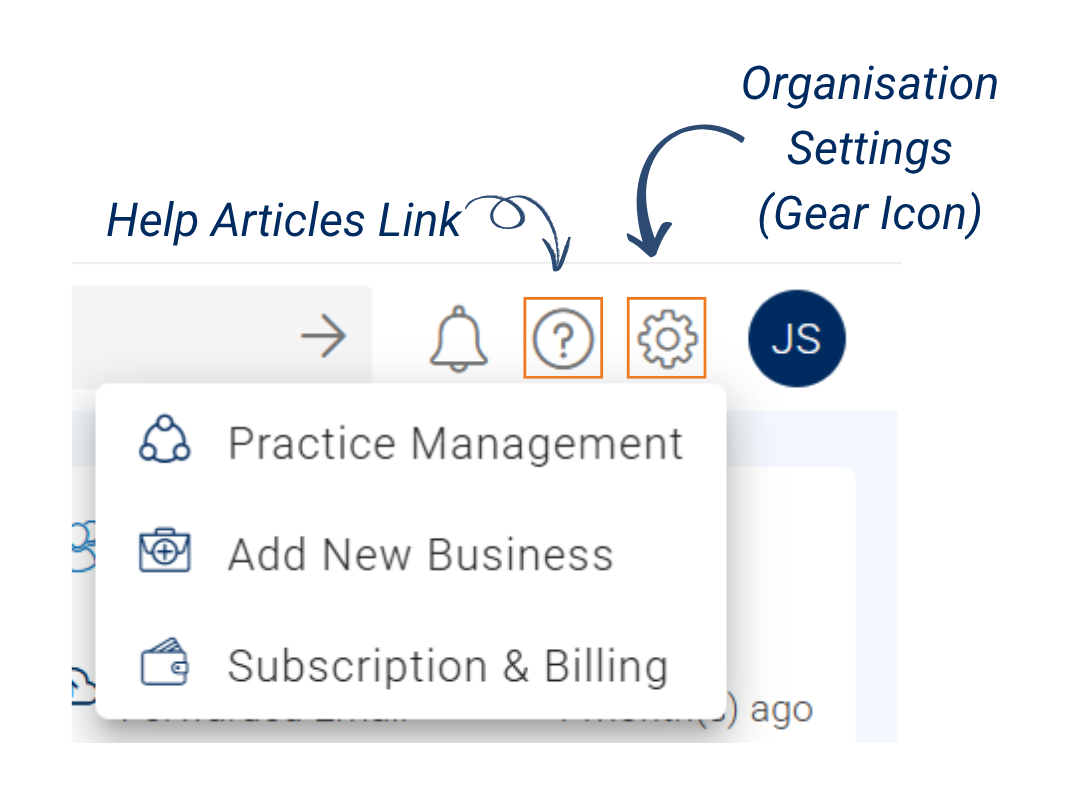
Help Articles Link (Question Mark Icon): Access the knowledge base section to find articles and guides on how to use Receipt Bot.
Organisation Settings (Gear Icon): Provides access to high-level settings. For practice accounts, this menu includes options like Practice Management, Add New Business, and Subscription & Billing.
User Profile (Your Initials): Click the circle with your initials to view your details (name and email). This menu also contains links to your User Profile page and the Logout button.

Practice Management Layout
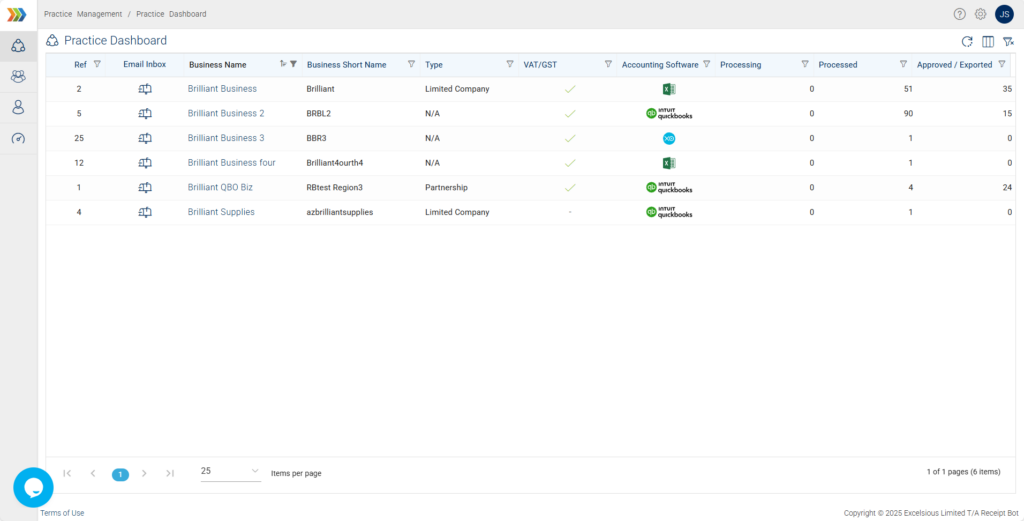
When you navigate to the Practice Management module, the interface shifts from a business-level view to a practice-level one. The main menu on the left simplifies to show options relevant to managing your entire practice and client portfolio.
This module includes the following sections:
– Practice Dashboard: This is your central hub for a high-level overview of all client businesses. It presents a comprehensive table that allows you to monitor key bookkeeping metrics at a glance. For each business, you can view details such as integrated accounting software, the number of documents in each stage, and quick access to the client’s dedicated Email Inbox.
– Practice Staff: Manage your team members’ access. Here you can invite new users, assign them to specific clients, or manage the Receipt Bot account ownership.
– Practice Profile: Customise the branding and information for your practice. You can update your practice name, upload a logo that will be visible to your clients, and edit other firm-level details.
You can refer to the following article for details: Overview of Practice Management.
Related articles
Frequently Asked Questions
Q: What is the difference between an Organisation and a Business in Receipt Bot?
A: An Organisation is the top-level account, typically representing your accounting practice or a parent company. It’s where the subscription and billing are managed. A Business is an individual entity (like a client, a branch, or a personal account) for which you are doing the bookkeeping. One Organisation can contain many Businesses.
Q: How can I quickly switch between my different client businesses?
A: You can switch businesses by clicking on the current business name in the Title Bar at the top of the screen. This will open the Business List, allowing you to select and navigate to another client’s account instantly.
Q: Where do I go to add a new business for a new client?
A: To add a new business, click the Settings (gear icon) in the top-right Title Bar and select ‘Add New Business’ from the dropdown menu.
Q: How can I add my practice logo so my clients can see it instead of the Receipt Bot logo?
A: You can add your logo by going to the Practice Management module. From there, select ‘Practice Profile’ to upload your logo and update your firm’s details. This branding will be visible to your clients when they log in to Receipt Bot.