
Manage your user profile
On the user profile page in Receipt Bot, you can update your information, such as your name and email, change your password, set up two-factor authentication, and enable notifications for document processing summaries.
Steps to Update Name or Email in the Receipt Bot
Step 1 – Click the gear icon at the top right and select the “User Profile” option.

Step 2 – Update relevant fields, such as first name, last name, or email address.

Step 3 – Click the “Save” button.
Your information will be updated in the Receipt Bot app.
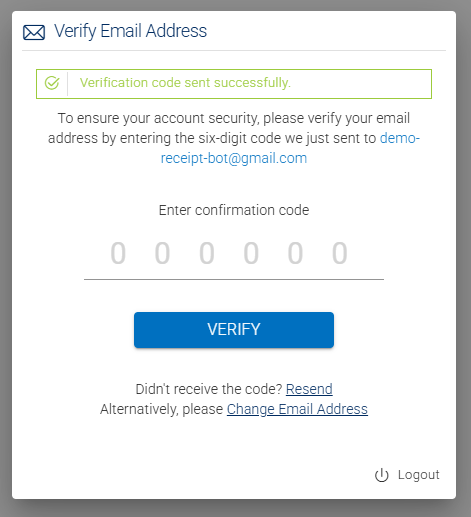
Note: If you change your email address, the system will send a verification code to your new address.
If you do not receive the email, you can request another verification code by clicking the “Resend” button. If you made a mistake when entering your email address, please click the “Change Email Address” button.
Update your info using the Receipt Bot mobile apps
You can update your basic information, such as name and email address, using the Receipt Bot mobile apps as well.
Step 1 – Open the business menu by clicking the hamburger icon at the top right.
Step 2 – Tap your initials or email address to open the User Profile page.
Step 3 – Update relevant fields, such as first name, last name, or email address.
Step 4 – Click the “Save” button.
Your information will be updated in the Receipt Bot app.